Understanding the BotLance Dashboard
Learn how to navigate the BotLance Dashboard, understand the main sections of your workspace, and discover where to manage your AI agents, conversations, automations, integrations, and analytics.
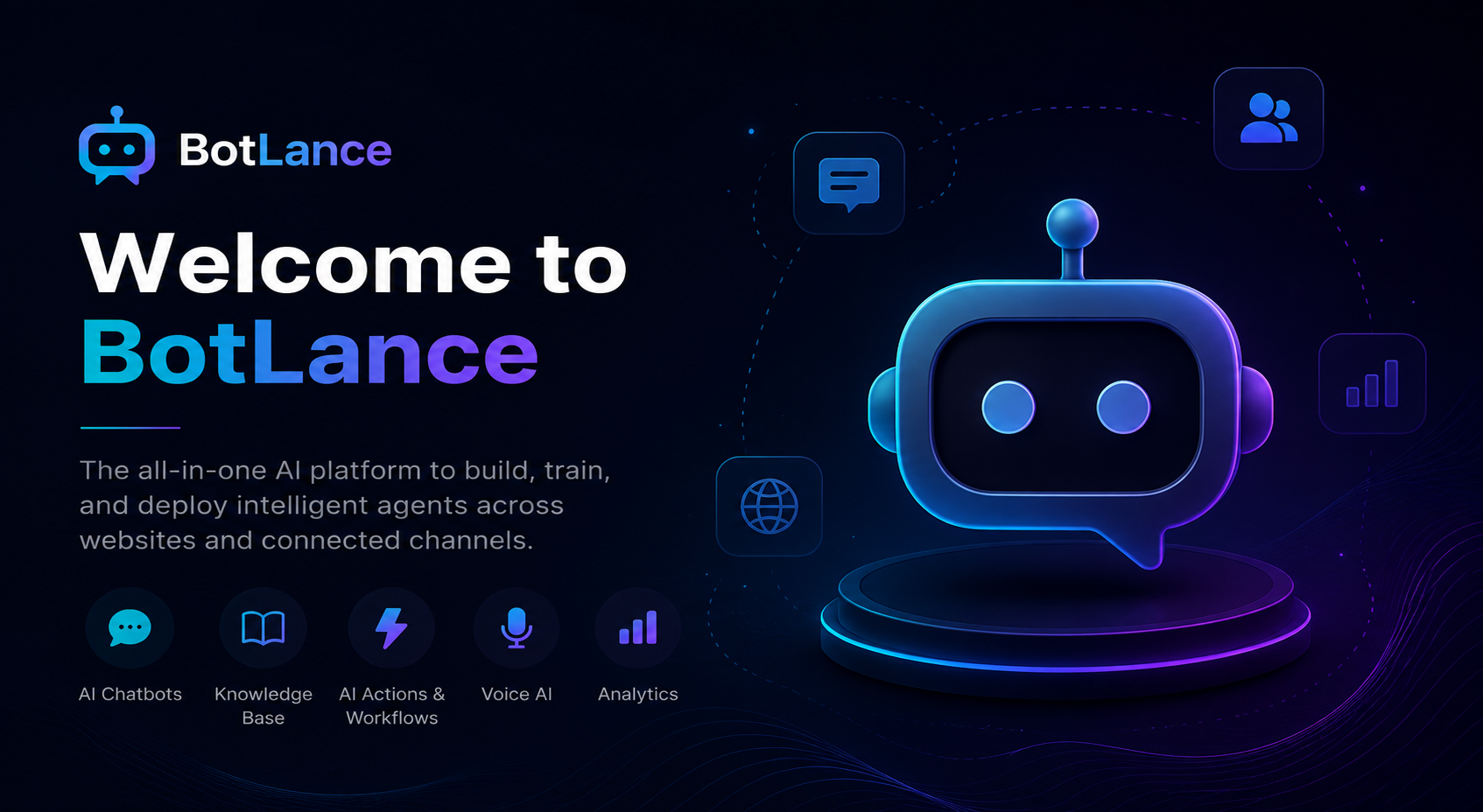
The BotLance Dashboard is the central hub of your workspace and the first screen you'll see after signing in. It provides a complete overview of your AI activity and gives you quick access to every major feature available in the platform. Whether you're building your first AI agent or managing multiple customer interactions, the dashboard is designed to keep everything organized in one place.
At the top of the dashboard, you'll find a quick overview of your AI performance. These cards display important metrics such as conversations, AI responses, captured leads, executed AI Actions, knowledge sources, connected integrations, appointment bookings, and other business activity. They help you understand how your AI agents are performing without opening individual sections.
The left sidebar is your primary navigation menu. Every major capability in BotLance is organized into its own section, allowing you to move between different tools while staying inside the same workspace.
The Dashboard itself gives you a real-time snapshot of your AI activity. You can review recent conversations, recently captured leads, AI Actions that have been executed, and other important information without leaving the page.
The Analytics section helps you measure the performance of your AI agents over time. You can monitor conversation trends, AI responses, lead generation, bookings, popular customer questions, channel distribution, and other insights that help you understand how visitors are interacting with your business. These reports make it easier to identify opportunities to improve your AI experience and track business growth.
The Inbox is where customer conversations are managed. Messages from supported channels are collected into a single workspace, allowing your team to review conversations, continue discussions, or take over when human assistance is required. This enables AI automation and human support to work together seamlessly.
The Knowledge Base is where you teach your AI about your business. You can upload documents, import website content, create FAQs, define services, and organize information that your AI agent will use when answering customer questions. The quality of your Knowledge Base directly impacts the quality of your AI responses.
AI Testing allows you to test your AI agent before customers interact with it. You can ask questions, verify responses, refine AI instructions, and confirm that your Knowledge Base is producing accurate answers before deploying your AI.
AI Settings let you control how your AI agent behaves. You can configure instructions, welcome messages, conversation memory, response behavior, and other settings that define how your AI communicates with visitors.
Voice AI allows you to create real-time voice experiences powered by AI. Visitors can interact with your AI agent using supported voice input, while your configured knowledge and instructions ensure accurate, context-aware responses. Voice AI currently focuses on website and supported messaging experiences rather than traditional phone calls.
Social AI extends BotLance beyond your website by acting as an intelligent AI backend for external platforms. Automation tools such as ManyChat, n8n, Make, Zapier, or any application capable of sending webhook requests can communicate with BotLance. The platform processes incoming requests using your configured AI agent and returns intelligent responses together with supported AI Actions.
AI Actions allow your AI agents to perform business tasks instead of only generating text. Actions can capture leads, request human assistance, trigger appointment booking workflows, or send structured data back to connected systems, helping automate real business processes.
AI Workflows provide a visual automation builder for creating advanced AI-powered workflows. By combining AI steps, conditions, actions, variables, and integrations, you can design intelligent business automations that extend far beyond traditional chatbot conversations.
The Integrations section allows BotLance to connect with external business tools. Supported integrations such as Google Calendar and Calendly enable your AI agents to interact with the software your business already relies on, while additional integrations will continue to expand the platform's capabilities.
The Channels section is where you manage communication channels connected to your workspace. Depending on your configuration, you can connect services such as WhatsApp, Telegram, Email, and other supported channels, allowing BotLance to communicate with customers across multiple platforms from a single workspace.
Depending on your subscription and workspace configuration, you may also have access to additional tools such as the AI Wallet, which manages AI credits and billing preferences, and Owner Studio, where workspace owners can manage platform content and administrative settings.
Rather than configuring everything at once, we recommend becoming familiar with the dashboard first. As you continue through this documentation, each section of the platform will be explained in detail with step-by-step guides, helping you build your AI agent one feature at a time.